
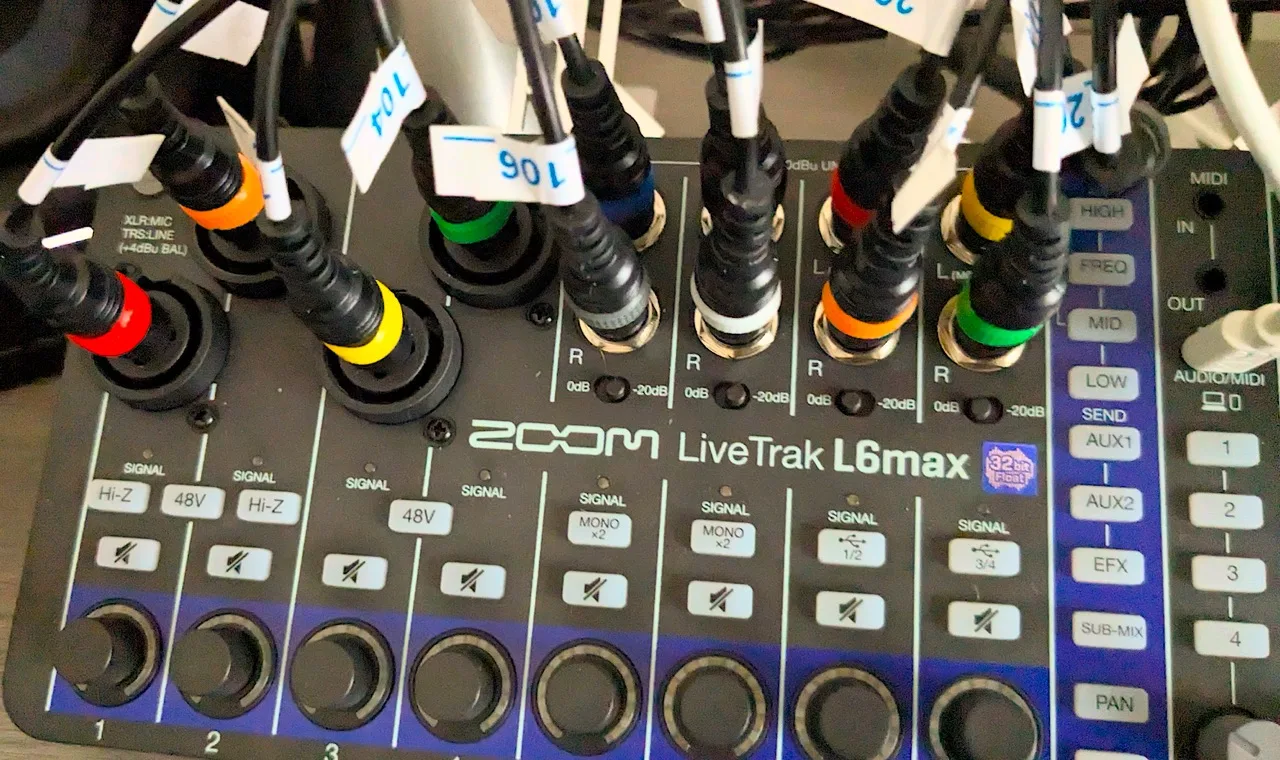
The Zoom L6 and the max version have a ton of mixer functionality crammed into a tiny footprint. This means that all of the controls are mulitple use, so each encoder can be level, pan, auxsend 1or2, or EQ settings for the channel.
Thoughtfully Zoom also included some pretty comprehensive MIDI control so you can map your favourite midi controller to have more immediate control of the parameters you care about. This is a really nice approach because things like EQ I hardly ever touch, but the AUX send I am much more interested in, so huge collums of EQ knobs on larger format mixers are wasted in my setup.
As an affiliate, I may earn a commission from qualifying purchases made through links on this page. This comes at no extra cost to you and helps support the content on this site.
I am on the lookout for a new MIDI control to pair with the Zoom L6 and other gear too (something for drambo on the iPad would be good). So when the new Novation Launchcontrol Mk3 was, er Launched I set about getting one – having both the USB and the legacy MIDI port is what interests me on the Mk3. But then I found there are a whole swathe of new generation of controllers, such as the Neuzit Drop and the Oxi 3, that have built on the legacy devices from Faderfox or Midifighter and added screens and interesting scene shifting features. So to cut a long story, I have not got my new controller yet, so I figured I would test out the concept on the versatile Arturia Minilab3 that I have. It also boasts both USB and DIN MIDI connectors, a screen, 8 encoders and 4 faders so plenty to test the concept.
Connection is made
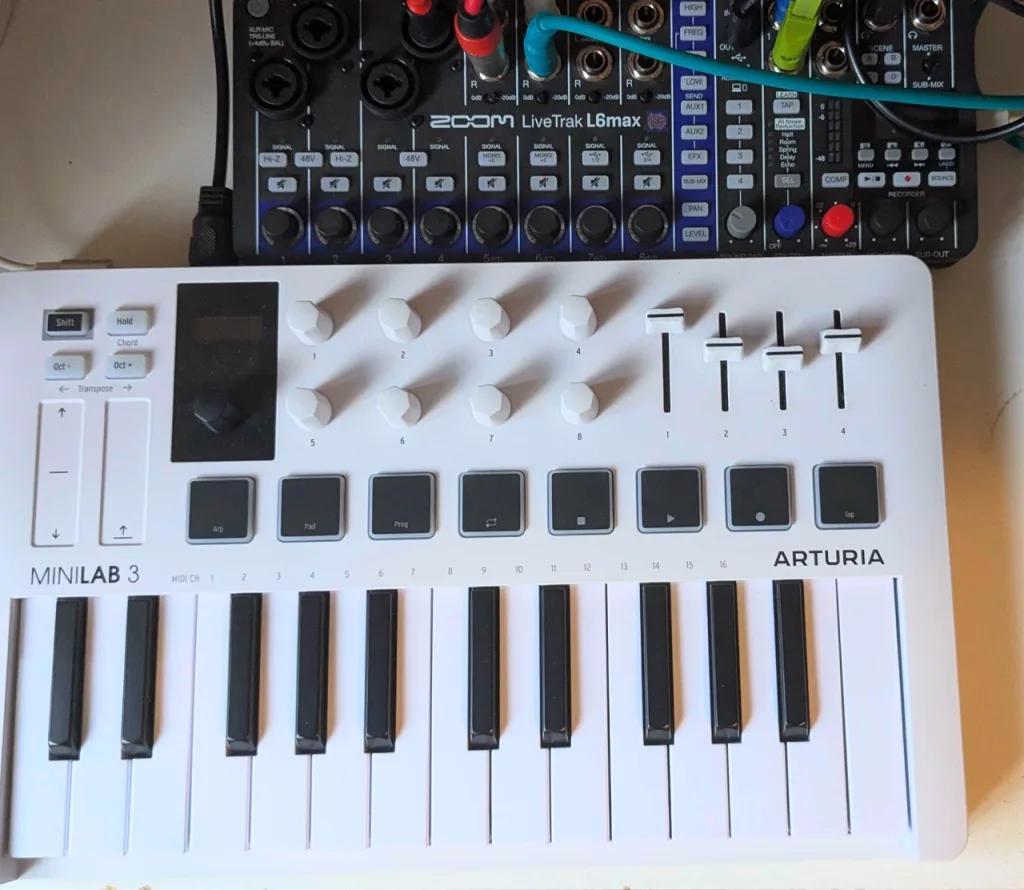
The zoom L6 Max has TRS-A MIDI connectors on the top for MIDI IN and MIDI OUT. The latter can also be set as THRU in the software menu. Actually one of the (very few) annoyances of the L6 is that you have to use the companion software to make most of the settings changes. Only a few limited changes are available navigating the onboard settings menu. Another notable one is setting the FX sends to be pre or post fader, again only in the companion software.
Anyway with the USB port plugged into the PC you can easily find all the MIDI Parameter numbers.
Get Mapping
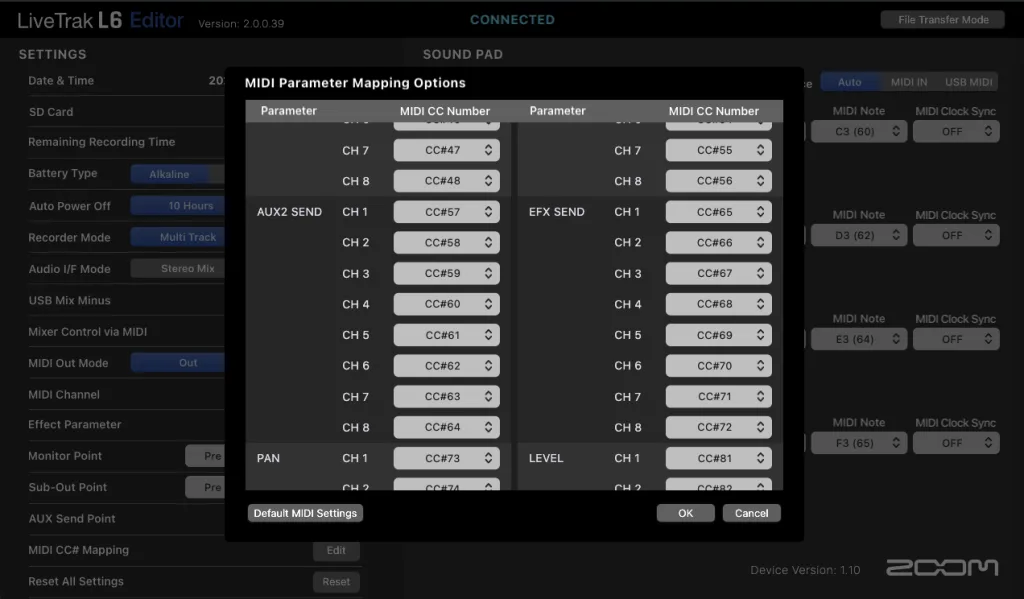
Now to fire connect the Minilab3 to the computer and load up the control software, and with the two windows side by side, I decided which MIDI CC codes to put into a template on the Minilab. I set the faders to be some channel levels, and then the encoders to be the AUX1 Send amount and the panning controls.
Since I was using a network of MIDI devices, I could also use the keybed of the minilab for my Minibrute2s. I could also have assigned the pads to be perhaps the mutes of the zoom or again a different device.
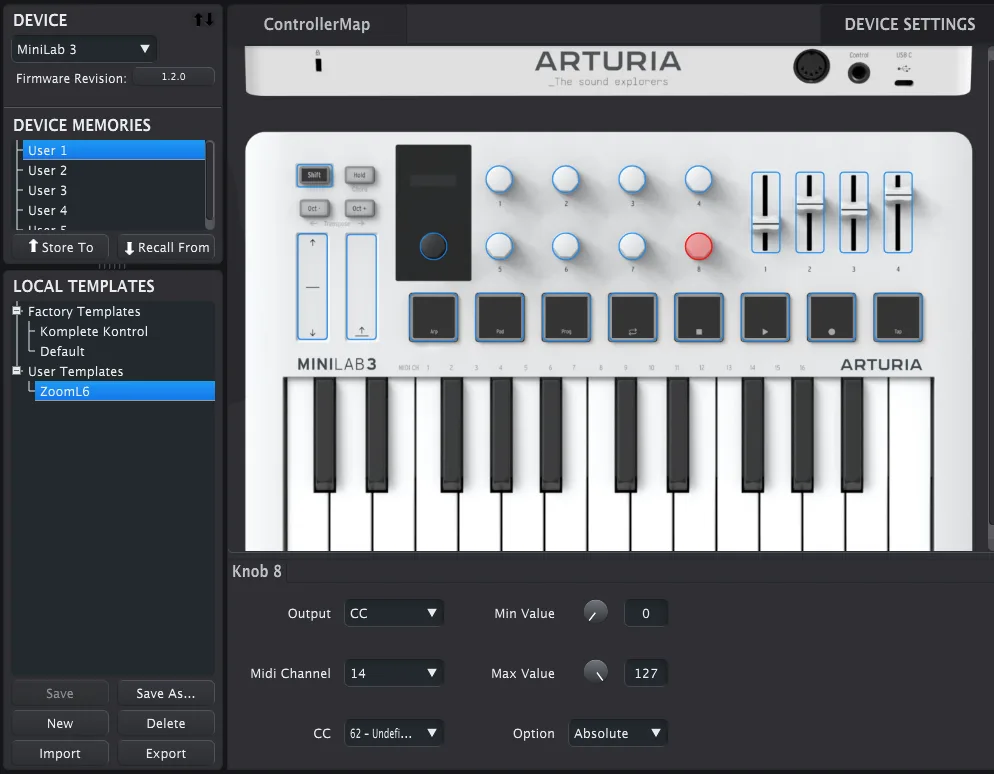
Arturia Minilab3 Mapping in Arturia Midi Control Centre
next I drag the profile into the device memories and instantly the Minilab3 is controlling the Zoom L6. If you have the right menu set on the zoom, you can also watch the LEDs on the Zooms encoders change as you alter the levels on the Minilab3. Magic!
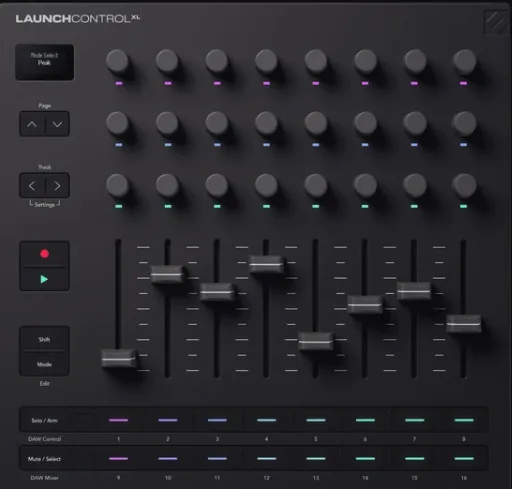
This does of course also highlight the problem of using MIDI controllers like this one is that you need to try and remember what every control is mapped to and you cannot see what level the encoders are at. So it looks like I will have to get the LaunchControl XL3 after all. It has customisable LEDs with each control to see the level, but I would have to cover it with sticker labels to show what each control does, unless I go for a real simple pattern of Channels 1 to 8 on the Fader levels and then set the encoders as AUX1send AUX2send and Balance.
As an affiliate, I may earn a commission from qualifying purchases made through links on this page. This comes at no extra cost to you and helps support the content on this site.